
Submit a support ticket
You can send a support ticket from the Help & Support panel in Introist. Every signed-in user can use it, whatever their role.
Submit a ticket
Section titled “Submit a ticket”Open the page your question is about first, such as the workflow or employee. The Support panel then attaches it for you.
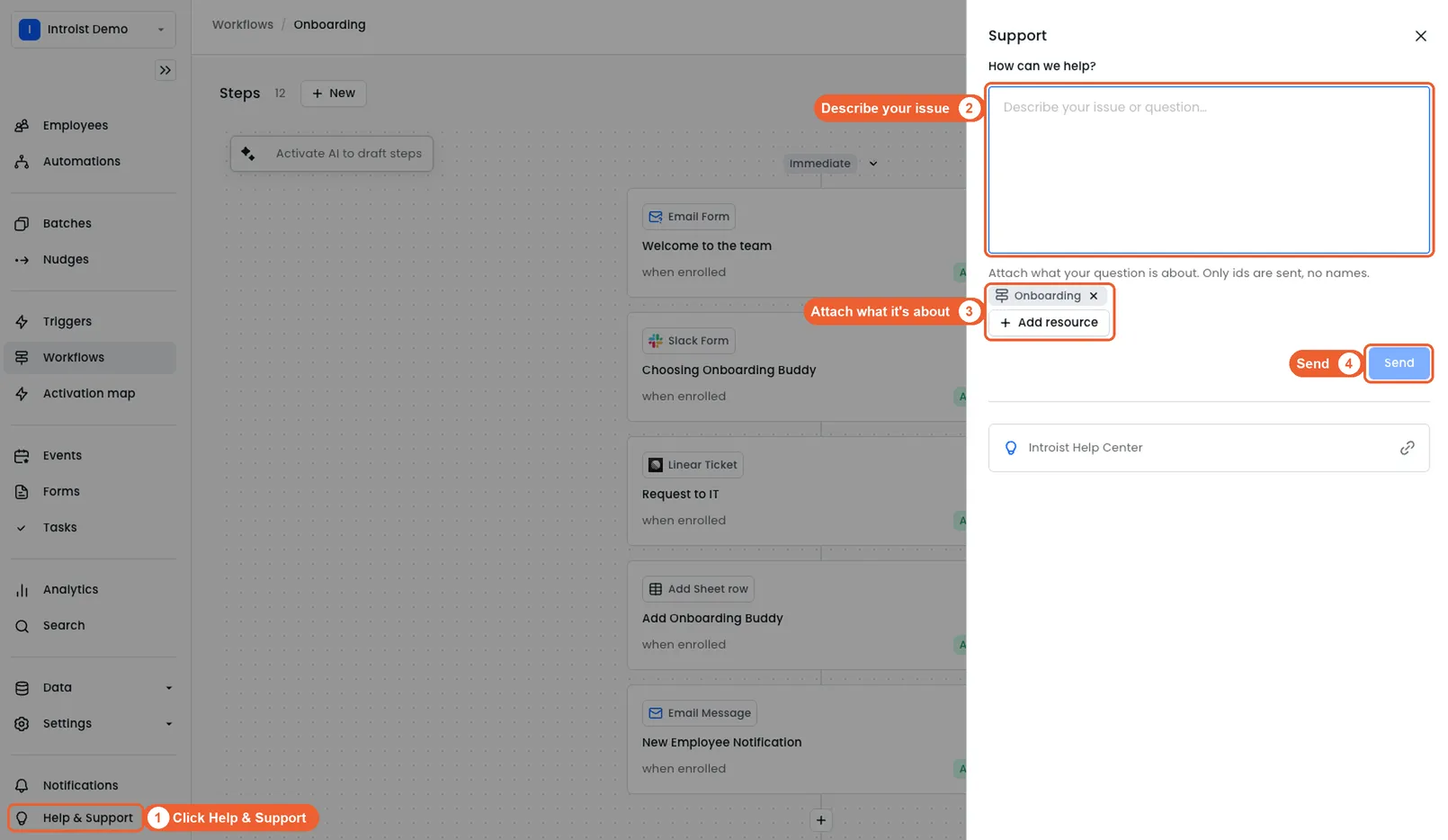
- Click Help & Support in the bottom-left corner. The Support panel opens on the right.
- Under How can we help?, describe your issue or question. The first line becomes the ticket title, so start with a short summary.
- Attach what your question is about. Click Add resource to attach more items, or the × on an item to remove it.
- Click Send. You see a confirmation that your message was sent to Introist support.
To report another issue, click Send another.
What to include
Section titled “What to include”A good ticket says what you expected, what happened instead, and where. Include:
- What you were trying to do, in one sentence.
- What happened, including any error message, word for word.
- When it happened, with the date and approximate time.
- Who or what it affects: one employee, a few, or everyone in a workflow.
- The related items, attached as resources rather than described by name.
You can attach these items:
| Resource | Use it when the question is about |
|---|---|
| Workflow | A whole workflow |
| Workflow step | One step, such as an email or a Slack message |
| Trigger | A trigger that did or did not fire |
| Employee | One employee’s data or journey |
| Form | A form or its responses |
| Automation | A whole automation |
| Automation step | One step in an automation |
| Dataset | A dataset or its sync |
The page you were on is sent with the ticket too, so support can see where you started.
A message can be up to 10,000 characters, with up to 50 attached items. Screenshots and files can’t be attached.
Example
Section titled “Example”Welcome email was not sent to a new hire
The “Welcome to the team” step in the Onboarding workflow should have sent on 24 Nov. The attached employee did not receive it. Other new hires that week did. No error was shown.
What happens next
Section titled “What happens next”Your ticket goes straight to the Introist support team, with your email address and workspace. Support always replies by email, not in the app.
If sending fails, you see “Sending failed, please try again”. Click Send again.
If you can’t use the app, for example because you can’t sign in, email support@introist.com instead.